

iPhone Messages: How to Rearrange, Add and Remove iMessage Apps
Apple's Messages app offers much more than sending and receiving text messages. Over the years, Apple has introduced several features that allow users to share photos, send voice messages, exchange stickers, share locations and use third-party applications directly inside conversations.
However, not everyone finds the iMessage app menu convenient. Some applications appear at the top even when users rarely use them, while frequently accessed tools can remain further down the list. Fortunately, iPhone users can customize this arrangement to make their favourite messaging features easier to access.
If you regularly use Apple's Messages app, reorganizing its built-in application menu can make everyday conversations more convenient.
Why You Should Customize Your iMessage App Menu

Apple's iMessage ecosystem includes several tools designed to improve conversations. Depending on your installed apps and iOS version, the menu can provide access to features such as:
Location sharing
Voice messages
Stickers and GIFs
Photo sharing
Music sharing
Polls and other interactive features
Third-party applications
The problem is that the default arrangement may not match your personal preferences.
For example, someone who frequently shares photos might prefer the Photos app at the top, while another user may want quick access to stickers, voice messages or location sharing.
Rearranging the menu allows you to put frequently used tools within easier reach instead of scrolling through applications every time you open a conversation.
How to Rearrange iMessage Apps on Your iPhone
ou can change the order of your iMessage applications directly from the Messages app. Follow these steps:
Open the Messages app on your iPhone.
Open an existing conversation or start a new message.
Tap the Plus (+) button beside the message input field.
Find the application you want to move.
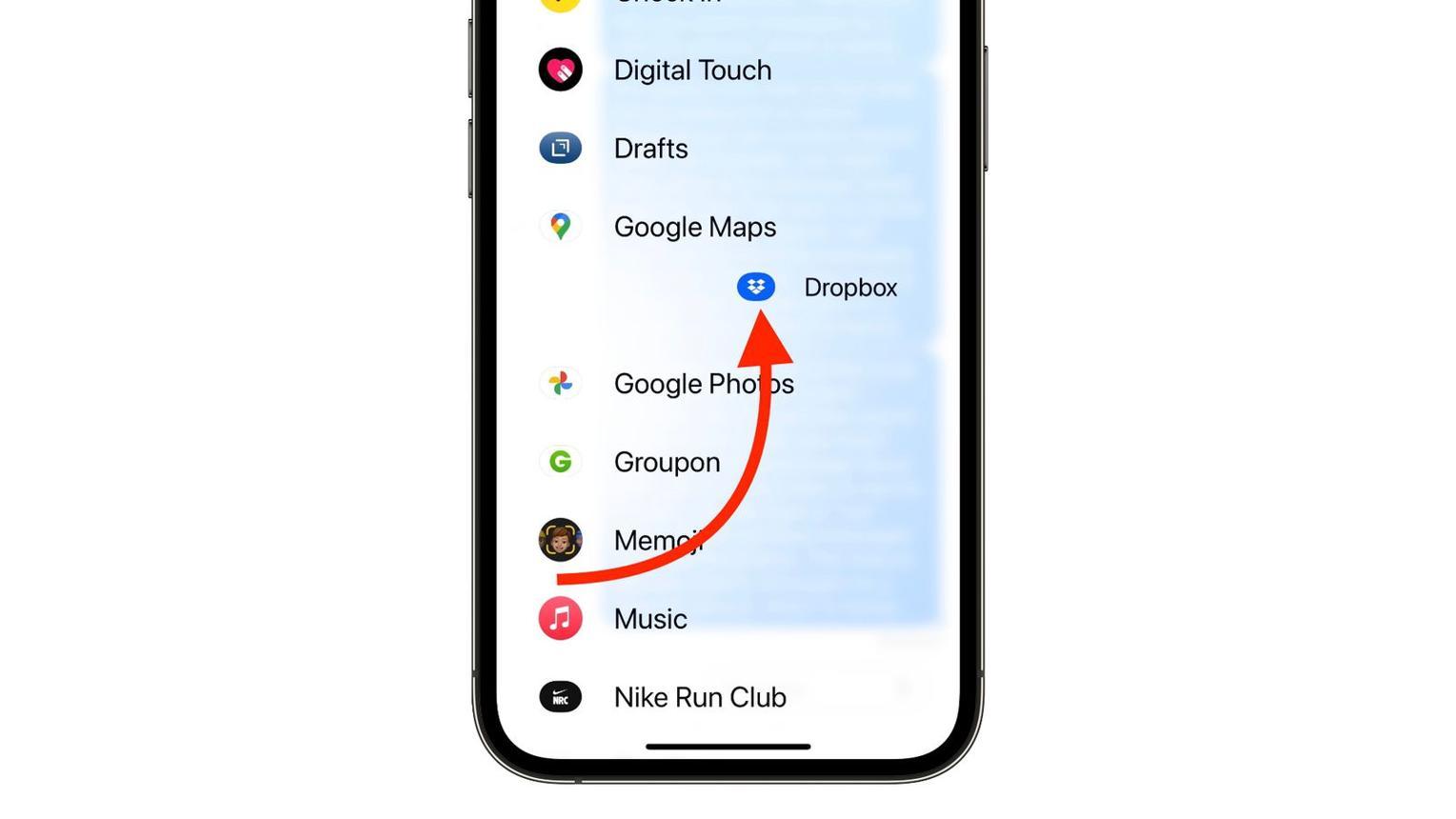
Touch and hold its icon until it becomes movable.
Drag the application to your preferred position.
Release your finger to save its new position.
You can repeat these steps to organize other applications according to your preferences.
Tip: Place the tools you use most frequently near the top of the menu. This can reduce unnecessary scrolling when sending photos, sharing locations or recording voice messages.
How to Download More iMessage Apps
Apple also allows users to expand the functionality of Messages by downloading compatible applications.
Here's how to find additional iMessage apps:
Open a conversation in the Messages app.
Tap the Plus (+) button.
Select the blue App Store icon.
Browse the available applications or search for a specific app.
Tap Get beside the application you want to install.
If an app is paid, its price will appear instead of the Get button.
Once installation is complete, the application may become available through your iMessage app menu.
Keep in mind that some applications offer additional paid features or in-app purchases, so check their pricing before downloading.
How to Disable or Remove Unwanted iMessage Apps
Not every application needs to remain available inside your messaging interface. If you have downloaded apps that you no longer use, you can manage which ones appear in Messages.
Depending on your iOS version, follow this general route:
Open your iPhone's Settings.
Navigate to Apps.
Select Messages.
Open the iMessage Apps settings.
Turn off the applications you no longer want to use.
You can also uninstall an application completely from your iPhone.
To do that, find its icon on your Home Screen, touch and hold it, select Remove App, and confirm the removal if prompted.
Disabling an iMessage app and deleting an application are different actions. Turning off its Messages integration does not necessarily uninstall the main application from your device.
Be Careful When Installing Third-Party iMessage Apps
Third-party applications can make messaging more useful, but users should consider privacy, permissions and payment requirements before installing them.
Some apps may request access to information or features that are not necessary for their main purpose. Others may offer free downloads but charge for additional functionality.
Before installing an unfamiliar application, check its developer, App Store description, privacy information and available purchase options.
Parents who use Apple's Family Sharing features should also review purchase approval settings for children's accounts. Apple's Ask to Buy feature can help require parental approval for eligible purchases.
Final Thoughts
Customizing the iMessage app menu is a simple way to improve the everyday messaging experience on an iPhone. By moving frequently used applications to the top, installing useful tools and disabling unwanted integrations, users can make Apple's Messages app more convenient and easier to navigate.
Instead of accepting the default arrangement, take a few minutes to organize the menu around your communication habits. Small adjustments can make frequently used features much easier to find.
اترك تعليقاً
لن يتم نشر عنوان بريدك الإلكتروني. الحقول المطلوبة مشار إليها بـ *