

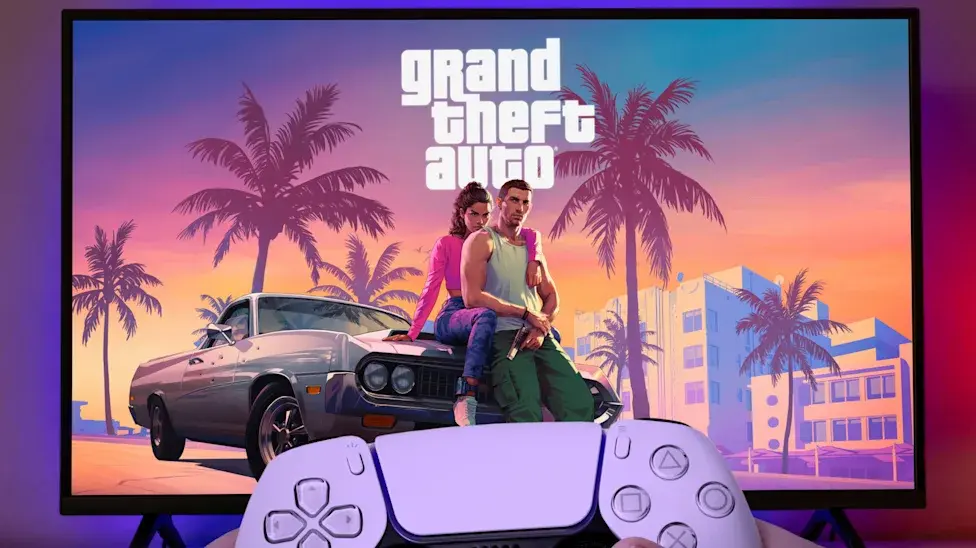
With Grand Theft Auto VI approaching its launch, PlayStation 5 owners have a good reason to check their console settings before entering the world of Leonida.
Rockstar's next major open-world game is expected to deliver detailed environments, busy city streets, cinematic missions and an immersive soundscape. Getting the most out of that experience will depend not only on the game itself but also on how your console and television are configured.
Fortunately, you don't need to purchase a new console to prepare. A few adjustments to your PS5 display and audio settings can help improve picture quality, reduce display-related stuttering and make gameplay more immersive.
Here are three important settings worth checking before playing GTA 6.
1. Enable VRR and 120Hz Output
One of the most useful PlayStation 5 features is Variable Refresh Rate, commonly known as VRR.
VRR allows a compatible television or monitor to adjust its refresh rate according to the console's output. This can help reduce screen tearing and make changes in frame rate look smoother.
That could be useful in a large open-world game such as GTA 6, where busy locations, vehicle chases and detailed environments may create changing performance demands.
How to Enable VRR on PS5
Follow these steps:
- Open Settings on your PS5.
- Select Screen and Video.
- Choose Video Output.
- Find the VRR option.
- Select Automatic to enable it on supported displays.
- Consider enabling Apply to Unsupported Games as well.
The additional option can help stabilize frame delivery in some games that don't officially support VRR. However, Sony recommends turning it off if you experience unexpected gameplay or display problems.
Enable 120Hz Output
You should also check the console's 120Hz setting.
Go to:
Settings → Screen and Video → Video Output → 120 Hz Output
Set the option to Automatic.
Your television or monitor must support 120Hz output, and you should connect the PS5 to a compatible HDMI port. HDMI 2.1 is generally required for 4K at 120Hz.
It's important to understand that enabling 120Hz does not automatically make every game run at 120 frames per second. It simply allows the console to send a compatible 120Hz signal when supported.
Even if GTA 6 runs at a lower frame rate, a 120Hz output setting can still be useful for other compatible games.
2. Calibrate HDR for Better Graphics
High Dynamic Range, or HDR, can improve the appearance of supported games by providing a wider range of brightness and color.
This is particularly relevant for GTA 6, which features different environments and lighting conditions. Players will move between bright outdoor locations, nighttime streets, indoor areas and neon-lit entertainment districts.
Incorrect HDR settings can make these scenes look washed out or overly dark. Proper calibration helps your television display the available brightness and shadow detail more accurately.
How to Adjust HDR on PS5
First, make sure HDR is enabled on the HDMI input connected to your PlayStation.
Then follow these steps:
- Open Settings.
- Select Screen and Video.
- Go to Video Output.
- Find the HDR option.
- Select On When Supported or Always On.
- Open Adjust HDR.
- Follow the on-screen calibration instructions.
For most users, On When Supported is a sensible option because games and apps without HDR support remain in standard dynamic range.
Always On is another option, but it converts unsupported content to HDR output. The visual result depends on your display.
Check Your TV's HDR Gaming Mode
Your television may offer additional picture settings, including:
- HDR Game Mode
- HGIG
- Dynamic Tone Mapping
- Local Dimming
- Brightness and Contrast
If your TV supports HGIG, enabling it can help avoid unnecessary additional tone mapping during console HDR calibration.
Rockstar also recommends checking the television's HDR support and using an appropriate Game Mode when troubleshooting HDR problems.
3. Enable Personalized 3D Audio
Graphics are only one part of an immersive gaming experience. Sound also plays an important role, especially in an open-world game filled with traffic, pedestrians, vehicles and environmental effects.
The PlayStation 5 includes Tempest 3D AudioTech, which creates a more spatial audio experience through compatible headphones.
Instead of hearing everything as ordinary stereo sound, supported audio can provide a better sense of where sounds are coming from.
For example, you may notice approaching footsteps, nearby vehicles or environmental sounds from different directions.
How to Set Up 3D Audio on PS5
You can configure the feature through these steps:
- Connect your headphones to the PS5.
- Open Settings.
- Select Sound.
- Choose 3D Audio (Headphones).
- Select Create Personalized 3D Audio Profile.
- Follow the instructions to complete the audio test.
- Enable Apply Personalized 3D Audio Profile.
- Make sure Enable 3D Audio for Headphones is turned on.
The console also provides preset audio profiles if you don't want to create a personalized one.
A wired headset can be a convenient option. Standard Bluetooth audio isn't supported directly by the PS5, although compatible wireless headsets can connect using a USB wireless adapter.
Bonus: Check Your PS5 Game Presets
Apart from display and sound, the console also allows users to configure certain game preferences in advance.
These settings can save time when starting a new game.
Go to:
Settings → Saved Data and Game/App Settings → Game Presets
Depending on the options supported by a game, you can configure:
- Performance Mode or Resolution Mode
- Default difficulty
- First-person camera movement
- Third-person camera movement
- Subtitles and audio preferences
For GTA 6, the actual graphics and performance options will depend on the settings Rockstar provides inside the game. Console-wide presets do not guarantee that every game will support every option.
Do You Need a PS5 Pro for GTA 6?
Not necessarily.
The standard PlayStation 5 and PS5 Pro both support advanced display features, including HDR and VRR on compatible televisions. The PS5 Pro offers additional graphics capabilities in supported games, but its benefits depend on how developers optimize their titles.
Sony has promoted GTA 6 as a major PS5 release, with the game scheduled for November 19, 2026.
However, players should wait for official technical details before assuming specific resolution targets, frame rates or graphics modes.
Final Thoughts
Preparing your PlayStation 5 before GTA 6 launches doesn't require complicated changes.
Enabling VRR, setting up 120Hz output, calibrating HDR and creating a personalized 3D Audio profile are useful steps for players with compatible equipment.
These settings can improve the overall console experience, although the final graphics and performance will depend on Rockstar's optimization and the capabilities of your television or monitor.
Before starting your GTA 6 adventure, take a few minutes to check these options. Your PS5 will be better prepared to deliver the best experience its hardware and display setup can support.
Tinggalkan komentar
Alamat email Anda tidak akan dipublikasikan. Kolom yang wajib diisi ditandai *