


Android Studio for Beginners: Complete Guide to Building Your First Android App
If you want to learn Android app development but don't know where to start, Android Studio is one of the best tools to begin with. It is Google's official development environment for creating Android applications and provides everything beginners need to design, code, test, and build Android apps.
In this beginner's guide, we will explain what Android Studio is, how to install it, how to create your first project, and how to build an APK that you can install on an Android phone.
What Is Android Studio?
Android Studio is the official Integrated Development Environment (IDE) for Android application development. It provides tools for writing code, designing applications, testing apps, debugging problems, and generating APK or app bundles.
Android Studio supports modern Android development technologies such as Kotlin, Jetpack Compose, Gradle, and Android SDK tools.
For beginners, Android Studio may look complicated at first, but once you understand the main sections of the program, creating an Android app becomes much easier.
What Do You Need to Start Android Development?
Before installing Android Studio, you should have a computer that can comfortably run development software.
You will generally need:
- A Windows, macOS, Linux, or ChromeOS computer
- Sufficient RAM and storage
- An internet connection for downloading Android Studio and SDK components
- Basic computer knowledge
- A willingness to learn programming
You do not need to be an expert programmer before starting. Beginners can learn Android development step by step.
How to Install Android Studio
The first step is to download Android Studio from the official Android developer website.
Download Android Studio from Google
After downloading the installer, follow the installation instructions.
During setup, Android Studio may install or configure important components such as:
- Android SDK
- Android SDK Platform Tools
- Android SDK Build Tools
- Android Emulator
- Android Virtual Device components
Allow the installation to complete before opening your first project.
Create Your First Android Studio Project
After launching Android Studio, you will see the welcome screen.
Select:
New Project
Android Studio will provide several project templates. For a modern beginner project, you can select a simple application template that uses Jetpack Compose.
Enter a name for your application, for example:
Smart Scanner
You can also choose a package name such as:
pk.com.example.smartscanner
Select the location where you want to save the project and click Finish.
Android Studio will create the project and download the required Gradle dependencies.
The first project can take several minutes to load, especially on a slower computer.
Understanding the Android Studio Interface
The Android Studio interface contains several important areas.
Project Files
The Project panel shows the files and folders belonging to your application.
You may see folders and files such as:
appmanifestsjavakotlinresGradle Scripts
The exact structure can vary depending on the project template and Android Studio version.
Main Editor
The large area in the center is where you write and edit your application code.
If you are using Jetpack Compose, you will normally work with Kotlin files containing composable functions.
Run Button
The green Run button allows you to build and launch your application on an emulator or connected Android phone.
Logcat
Logcat displays messages from your application and Android system. It is especially useful when troubleshooting crashes and other problems.
What Is Kotlin?
Kotlin is the primary programming language recommended for modern Android development.
A simple Kotlin statement might look like this:
Text("Hello Android!")In a Jetpack Compose application, this can display text on the screen.
You don't need to memorize everything immediately. The best approach for beginners is to learn Kotlin gradually while building small projects.
What Is Jetpack Compose?
Jetpack Compose is Google's modern toolkit for building Android user interfaces.
Instead of creating every screen using traditional XML layouts, Compose allows developers to describe the user interface directly using Kotlin code.
For example:
@Composable
fun WelcomeScreen() {
    Text("Welcome to My App")
}
This creates a simple screen containing text.
Compose can also be used to create:
- Buttons
- Text fields
- Images
- Menus
- Lists
- Cards
- Navigation screens
- Complete application interfaces
How to Run Your First Android App
There are two common ways to run an Android application.
Method 1: Android Emulator
Android Studio includes tools for creating virtual Android devices.
You can create an Android Virtual Device (AVD), select an Android version, and start the emulator.
Then click the Run button in Android Studio.
Your application should launch inside the virtual phone.
Method 2: Real Android Phone
You can also test your application on a real Android smartphone.
First, enable Developer Options on your phone.
Then enable:
USB Debugging
Connect your phone to your computer using a USB cable.
Android Studio should detect the device. Select your phone from the device list and click Run.
Your application will then be built and installed on the phone.
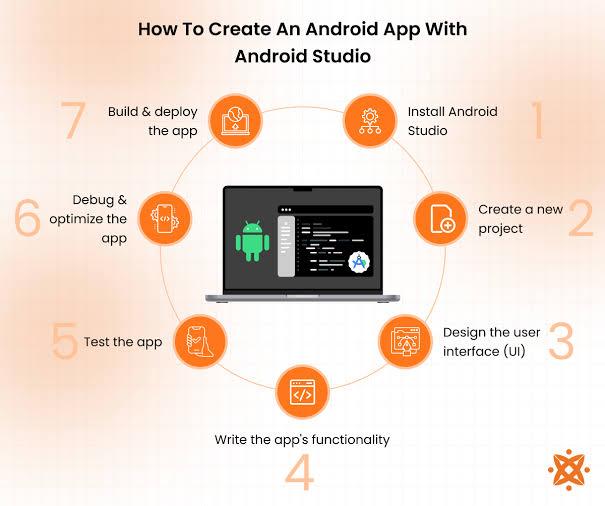
How to Build an APK
One of the most useful things beginners learn is how to create an APK.
An APK is an Android application package that can be installed on compatible Android devices.
In Android Studio, you can use the Build menu to generate an APK.
A typical debug APK may be generated inside a path similar to:
app/build/outputs/apk/debug/
The exact location can vary depending on the project configuration.
You can then locate the APK file and transfer it to an Android phone for testing.
Debug APK vs Release APK
Android development commonly involves different build types.
Debug APK
A debug APK is primarily intended for testing during development.
It is useful when:
- Testing your application
- Installing it on your own phone
- Checking new features
- Finding bugs
Release Build
A release build is prepared for distribution.
Before publishing an application, developers normally configure signing and create an appropriate release build or Android App Bundle.
Google Play commonly uses Android App Bundles (AAB) for app distribution.
How Beginners Should Learn Android Studio
Trying to learn everything at once can be overwhelming.
A better approach is to build small applications.
Start with simple projects such as:
- Hello World app
- Calculator
- Digital clock
- Notes app
- QR scanner
- To-do list
- Weather app
- Simple news app
- Expense tracker
- Mobile shop inventory app
Each project teaches you something new.
Common Android Studio Problems for Beginners
New developers often encounter errors during their first projects.
Gradle Build Failed
Gradle is responsible for building your Android project. A build can fail because of dependency, configuration, network, or compatibility problems.
Read the error message in Android Studio carefully instead of immediately changing random settings.
SDK Not Installed
If Android Studio reports that an SDK component is missing, open the SDK settings and install the required component.
Phone Not Detected
If your Android phone does not appear in Android Studio, check:
- USB cable
- USB debugging
- Phone authorization prompt
- USB connection mode
- Android device drivers where applicable
Application Crashes
Use Logcat to identify the error causing the crash.
Learning how to read Logcat is an important skill for every Android developer.
Android Studio Tips for Beginners
Here are some useful tips if you are just starting:
Start Small
Do not try to create a large social media application as your first project.
Build small applications and gradually increase their complexity.
Learn Kotlin
Understanding basic Kotlin will make Android Studio much easier to use.
Focus first on:
- Variables
- Functions
- Conditions
- Loops
- Classes
- Lists
- Null safety
- Basic object-oriented programming
Practice Every Day
Even 30–60 minutes of regular practice can help you improve.
Don't Be Afraid of Errors
Errors are a normal part of programming.
Instead of deleting your project when something goes wrong, read the error and learn what caused it.
Can Beginners Build Android Apps With Android Studio?
Yes. Beginners can absolutely learn Android development with Android Studio.
You do not need to understand advanced programming on your first day. Start with a simple project, learn the Android Studio interface, understand basic Kotlin, and gradually add features.
The most important thing is consistent practice.
Final Thoughts
Android Studio is a powerful development environment, but beginners should not be intimidated by its large number of tools and settings. Start with a simple application and learn each part of the development process step by step.
Once you understand how to create a project, write Kotlin code, design a user interface, run the application, troubleshoot errors, and generate an APK, you will have a strong foundation for developing more advanced Android applications.
Whether you want to build a QR scanner, mobile shop application, news app, utility app, or your own business application, Android Studio provides the tools you need to get started.
Leave a comment
Your email address will not be published. Required fields are marked *