

NVIDIA DLSS 4.5 Settings Guide: Best K, L and M Presets for Better Gaming Performance
NVIDIA's DLSS technology has become an important feature for PC gamers who want to play demanding AAA games with high frame rates, ray tracing and improved visual quality. With DLSS 4.5, NVIDIA offers several model presets that allow users to adjust the balance between image quality and performance based on their graphics card.
However, choosing the right preset can make a noticeable difference. Presets K, L and M are designed for different performance requirements, while additional settings in the NVIDIA app can help improve image quality and reduce visual glitches caused by Multi Frame Generation.
Whether you're using an RTX 50 Series GPU or an older RTX 20 or 30 Series graphics card, understanding these settings can help you get more out of your gaming PC.
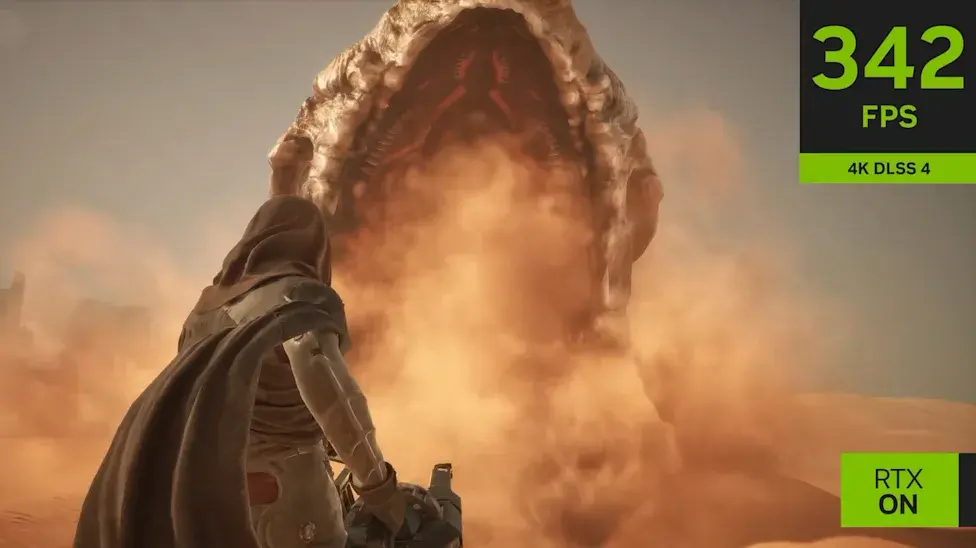
NVIDIA DLSS 4.5: What Are K, L and M Presets?
DLSS 4.5 includes different model presets that determine how the AI upscaling system reconstructs images from lower internal resolutions.
There is no single preset that works best for every gaming PC. Your GPU, display resolution, game settings and preferred frame rate all influence which option makes the most sense.
You can change the presets through the NVIDIA app by following these steps:
Open the NVIDIA app.
Navigate to Graphics.
Select Global Settings.
Find DLSS Override – Model Presets.
Choose your preferred preset.
Here's how the three main options compare.
Preset K: Best for High-End Gaming PCs
Preset K prioritizes image quality and is particularly suitable for powerful gaming systems.
It is the recommended choice for players using high-end graphics cards who want sharper visuals, better image stability and impressive results at higher resolutions.
For example, an RTX 5090-equipped PC can take advantage of preset K when running demanding games at 4K resolution. It is also a strong option for players who want to maintain detailed visuals while using ray tracing.
However, preset K can be demanding depending on the selected upscaling mode. Players with less powerful GPUs may experience reduced frame rates when using it in demanding titles.
Preset M: A Good Balance for Mid-Range GPUs
Preset M is designed for gamers who want a strong combination of image quality and performance.
It is particularly useful for mid-range graphics cards such as the RTX 4070. When upscaling from an internal resolution of 1080p, preset M can produce convincing results on a 4K display.
Its image stability also makes it a useful option for games with frequent camera movement and detailed environments.
For gamers who do not own an expensive flagship GPU, preset M offers a practical way to improve visual quality without placing excessive demands on the graphics card.
Preset L: Better Performance for Older RTX Graphics Cards
Preset L is aimed at players using older or less powerful hardware, including RTX 20 and RTX 30 Series graphics cards.
It is particularly useful when playing demanding games with ray tracing enabled. The preset can upscale images from an internal resolution of approximately 720p, helping older GPUs maintain more playable frame rates.
The trade-off is image stability. Compared with preset M, preset L can produce more noticeable ghosting, particularly when the camera moves quickly or objects move across the screen.
Even so, it can deliver surprisingly convincing results on 1440p and 4K displays.
Which DLSS 4.5 Preset Should You Choose?
| Preset | Best suited for | Main advantage |
|---|---|---|
| K | High-end gaming PCs | Best image quality |
| M | Mid-range RTX GPUs | Balanced performance and visuals |
| L | Older RTX 20 and 30 Series GPUs | Better performance on weaker hardware |
In simple terms, choose K if image quality is your priority, M if you want a balanced experience, and L if your graphics card needs additional performance.
Best DLSS 4.5 Settings for 4K Gaming
Playing modern AAA games at 4K resolution can put considerable pressure on a graphics card, especially when ray tracing or path tracing is enabled.
For high-end gaming systems, preset K is the strongest starting point for achieving detailed 4K visuals.
After selecting K, you can further adjust the image quality through the NVIDIA app's DLSS Override – Super Resolution Mode setting.
The available options include DLAA, Quality and Balanced.
DLAA: Best Image Quality
DLAA uses AI-based anti-aliasing while rendering at the display's native resolution rather than relying on upscaling from a lower resolution.
This makes it an excellent option for players who prioritize sharp details and smoother edges.
However, because DLAA does not reduce the rendering resolution, it can be demanding in modern AAA games. A powerful graphics card is recommended if you want to use it alongside ray tracing.
Quality Mode: A Strong Visual Experience
DLSS Quality mode renders the game at a lower internal resolution before reconstructing the image.
For 4K gaming, it typically uses a 1440p rendering resolution before upscaling to 2160p.
This provides a useful balance between image quality and performance, making it a good choice for players who want detailed visuals without the full performance cost of native 4K rendering.
Balanced Mode: Better Performance Without a Major Visual Compromise
Balanced mode reduces the internal rendering resolution further to improve performance.
For a 4K output, it uses an internal resolution of approximately 2227 × 1253 pixels.
Although it does not provide the same level of detail as DLAA or Quality mode, it can deliver attractive results while helping demanding games run more smoothly.
For most gamers with capable but non-flagship graphics cards, combining preset K with Balanced mode is a practical starting point.
Best DLSS 4.5 Frame Generation Settings
NVIDIA's Multi Frame Generation technology can significantly increase displayed frame rates by generating additional frames using AI.
It is particularly useful in demanding games that feature advanced ray tracing and path tracing.
However, higher FPS numbers do not automatically mean a better gaming experience. Frame generation can introduce additional latency and visual inconsistencies, particularly when using higher multipliers.
To adjust these settings, open the NVIDIA app and navigate to the Frame Generation section under DLSS Override – Model Presets.
Unlike the K, L and M upscaling presets, Frame Generation has its own options.
The available choices include:
Use 3D application setting
Recommended
Preset A
Preset B
The Recommended option is designed to provide a suitable balance between image quality and performance for supported games.
Preset B Can Help Reduce Visual Glitches
For gamers experiencing visual problems with Multi Frame Generation, preset B is worth testing.
Some players have reported distracting visual artifacts when using the older preset A. These problems can include shimmering around interface elements, icons and other 2D objects.
Games such as Resident Evil Requiem and 007 First Light are examples where these issues may become noticeable.
Switching from preset A to preset B can reduce or eliminate some of these artifacts, although results vary between games.
Not every Multi Frame Generation-supported title is compatible with preset B, so preset A may still be necessary in certain situations.
How to Get Better Results From NVIDIA DLSS 4.5
Choosing the right DLSS settings depends on your hardware and the type of games you play. A few adjustments can help you avoid unnecessary performance losses.
Use preset K for powerful GPUs: High-end graphics cards can benefit from its image-quality improvements.
Try preset M on mid-range systems: It provides a useful balance for GPUs such as the RTX 4070.
Choose preset L for older hardware: It can help RTX 20 and 30 Series cards handle demanding games.
Use DLSS Quality or Balanced for 4K: These options can improve performance without sacrificing too much visual detail.
Experiment with Frame Generation preset B: It may help reduce shimmering and other visual artifacts in compatible games.
Avoid relying only on displayed FPS: Frame generation increases the number of displayed frames, but it does not eliminate the latency associated with rendering additional frames.
Final Verdict: Which DLSS 4.5 Settings Are Worth Using?
NVIDIA DLSS 4.5 provides useful flexibility for PC gamers with different graphics cards and performance requirements.
Preset K is the strongest option for high-end gaming systems that prioritize visual quality. Preset M offers a more balanced experience for mid-range hardware, while preset L can help older RTX graphics cards run demanding games more smoothly.
For 4K gaming, DLAA and Quality mode deliver excellent image quality, while Balanced mode provides a sensible compromise between visuals and performance.
Frame Generation settings also deserve attention. Testing preset B can help reduce visual glitches in supported games, particularly when using Multi Frame Generation.
Ultimately, the best configuration depends on your GPU, monitor resolution and preferred gaming experience. Experimenting with these options through the NVIDIA app is one of the easiest ways to get more from your existing hardware.
Leave a comment
Your email address will not be published. Required fields are marked *