

What Does the Briefcase Icon Mean on Android? Here's How to Remove It
Android smartphones display different symbols to help users understand what is happening on their devices. These include icons for NFC, microphone and camera activity, the S Pen on supported Samsung phones, and other system functions.
However, some symbols can be confusing, particularly when they appear as small overlays on application icons.
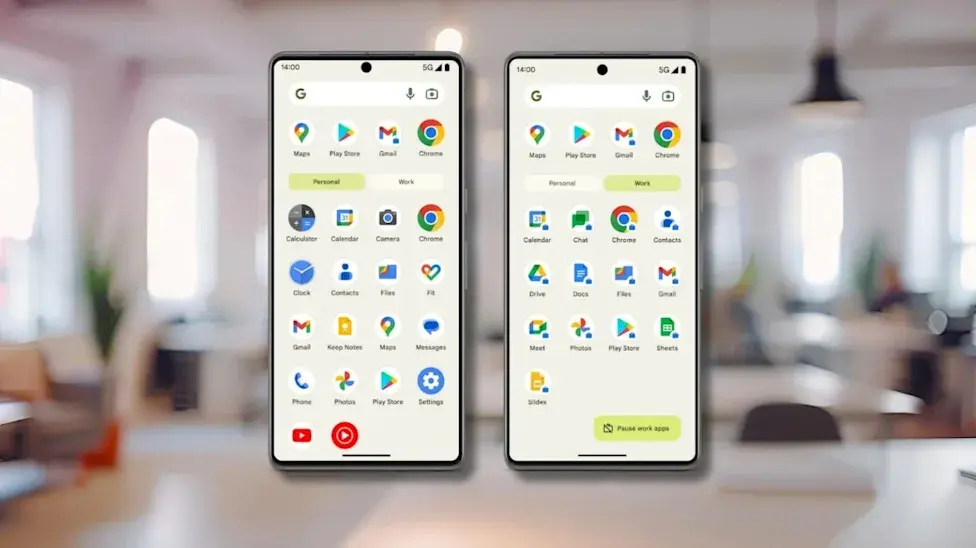
One example is the briefcase icon, which appears on certain apps when an Android Work Profile is enabled.
If you have noticed this symbol on your phone, there is usually no reason to worry. It indicates that the application belongs to a separate work environment rather than your regular personal profile.
What Does the Briefcase Icon Mean on Android?
The briefcase symbol identifies an application that belongs to an Android Work Profile.
A Work Profile is a separate environment designed for professional use. It allows employees and organizations to keep work-related applications, accounts and information separate from personal activities on the same smartphone.
For example, your phone might contain two versions of certain applications:
- A personal email application for your private account.
- A work email application connected to your organization.
- Personal contacts stored in your regular profile.
- Work contacts managed through your professional account.
Android displays a small briefcase badge on work-related application icons so users can distinguish them from their personal versions.
If your phone does not have a Work Profile, you generally will not see this particular symbol.
What Is an Android Work Profile?
An Android Work Profile is a separate user-access environment created specifically for professional applications and information.
It can contain company-managed apps, work accounts, business contacts and other organizational data.
The feature is designed to help people maintain a separation between their professional and personal lives without needing two different smartphones.
Work Profiles have been available on Android since around 2015 and have continued to evolve over the years.
They also provide organizations with a way to manage work-related information through their IT administration systems.
Although a Work Profile is separate from your personal environment, both profiles can exist on the same physical device.
Why Is the Briefcase Icon Appearing on Your Phone?
In most cases, the briefcase icon appears because a Work Profile has been configured on the device.
This may happen when:
- You sign in with a company-provided Google Workspace account.
- Your employer asks you to install a work management application.
- Your organization configures your phone for professional use.
- You accidentally begin setting up a work account or profile.
If you recently added a business email account or installed an organizational management application, that could explain why the briefcase symbol appeared.
The icon itself does not mean someone is accessing your personal applications. Its purpose is to identify applications belonging to the work environment.
How to Switch Back to Your Personal Android Profile
If your phone has separate personal and work profiles, you can switch between them.
Depending on your Android version and manufacturer, the available controls may differ.
You can start by checking:
- Open Settings on your Android phone.
- Navigate to System.
- Select Users or the available user-profile management option.
- Check whether a separate work profile or user account is available.
- Switch to your personal profile if the option is provided.
Some Android devices also provide a user-switching shortcut through the Quick Settings panel.
Keep in mind that switching profiles does not delete the Work Profile. It simply changes which profile is currently active.
How to Remove the Briefcase Icon Permanently
If you no longer need the professional environment, you can remove the Work Profile.
On supported Android devices, follow these steps:
- Open Settings.
- Navigate to Passwords and Accounts or the account-management section.
- Find the Work tab.
- Select Remove Work Profile.
- Read the confirmation message.
- Choose Delete to confirm.
The exact menu names and locations can vary depending on your phone manufacturer and Android version.
After the removal process finishes, the applications and data associated with the Work Profile will be deleted from the device. The briefcase badges should disappear as well.
If the phone is managed by your employer, you may need to contact your organization's IT administrator before removing the profile.
What Happens When You Delete an Android Work Profile?
Removing a Work Profile is different from simply switching back to your personal account.
When you delete it, the work-related applications and their associated local data are removed from the device.
This may include:
- Work email accounts.
- Organization-managed applications.
- Work contacts and calendars.
- Files and other information stored within the work environment.
Your personal profile is separate, but you should still check where important files and contacts are stored before proceeding.
If you need access to your work information later, your organization may have to set up the profile again.
Final Thoughts
The briefcase icon on Android is simply an indicator that an application belongs to a Work Profile. It helps distinguish professional apps from personal applications and supports the separation of work and private information.
If you only want to use your personal profile, switching accounts may be enough. However, if you want the briefcase symbols to disappear permanently, removing the Work Profile is the more direct option.
Before deleting it, make sure you no longer need the work applications or information stored inside it.
Leave a comment
Your email address will not be published. Required fields are marked *