


This Hidden Android Setting Makes Multitasking Much Easier
Android phones have supported multitasking for years, but many users still aren't taking advantage of some of the most useful features available on their devices.
One particularly useful option lets you open notifications in a floating pop-up window instead of switching completely away from the app you're currently using. This means you can respond to a message while keeping your current app visible in the background.
Android's multitasking capabilities have continued to expand since split-screen support was introduced in Android 7.0. Modern versions can also offer floating windows, picture-in-picture, split-screen layouts and, on compatible larger displays, desktop-style window management.
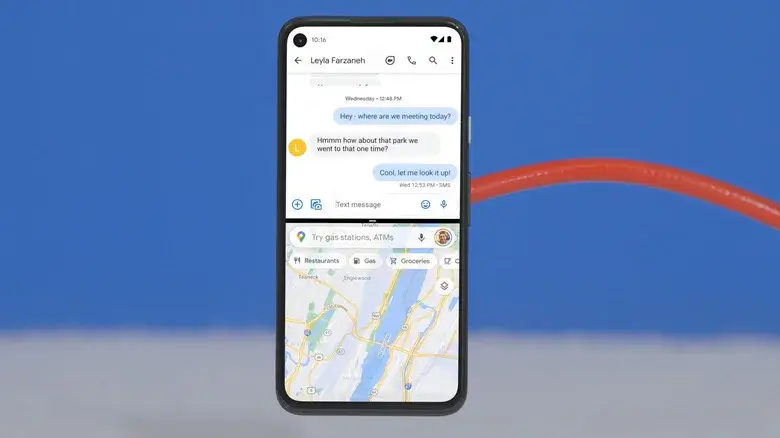
What Are Floating Notification Windows?
A floating notification window places an app in a small window above your current application.
For example, imagine you're watching a YouTube video and receive a message. Instead of leaving YouTube and opening your messaging app, you can open the notification in a floating window, reply to the message and then continue watching your video.
This can be particularly useful when you're working between two apps frequently.
The exact feature name and location can vary depending on the phone manufacturer and Android version.
How to Enable Floating Notifications on Samsung
Samsung Galaxy phones provide a feature called Smart pop-up view.
To enable it:
- Open Settings.
- Tap Notifications.
- Select Advanced settings.
- Tap Floating notifications.
- Choose Smart pop-up view.
- Open Included apps.
- Select the apps you want to use with floating notifications.
Once enabled, supported notifications can appear as floating pop-up windows over other applications.
Some apps may not appear in the list because they don't support the required multi-window functionality.
How to Enable Floating Windows on Motorola
Motorola devices use slightly different settings.
Try the following:
- Open Settings.
- Go to Gestures.
- Select Sidebar.
- Tap the gear icon to access Sidebar settings.
- Look for the option related to opening notifications in a freeform window.
- Enable Open notifications in freeform.
The exact menu names can differ between Motorola models and software versions.
How to Use Floating Windows on ASUS Phones
On supported ASUS smartphones, the relevant option can be found through the advanced settings.
Go to:
Settings → Advanced → Open floating windows via heads-up
Enable the option if it is available on your device.
Afterward, supported notification alerts can be opened in floating windows rather than taking over the entire screen.
What About Xiaomi Phones?
Xiaomi devices also support floating windows, although the available controls can differ depending on the model and version of HyperOS or MIUI.
On supported devices, you can usually find information about the feature under:
Settings → Additional settings → Floating windows
Xiaomi's implementation can be particularly useful for keeping a messaging app, calculator or other supported application accessible while another app remains open.
Android's Multitasking Has Improved Significantly
Floating notifications are only one part of Android's multitasking system.
Android supports several ways to use multiple applications at the same time, including split-screen mode, picture-in-picture and, on compatible devices, desktop windowing.
Split-screen lets two apps share the display, while picture-in-picture can keep supported video content visible in a small window while you use another application.
On larger compatible screens, Android can go even further by allowing multiple resizable application windows that can be moved around the display.
Android 17 Brings More Multitasking Features
Google is continuing to improve multitasking with newer Android releases.
Android 17 includes an enhanced Bubbles experience that allows apps to appear as compact floating windows. On large-screen devices, these bubbles can be placed in a dedicated bubble bar, allowing users to switch between applications quickly.
These improvements make Android increasingly capable of handling workflows that traditionally required a computer.
Why You Should Try Floating Windows
Floating windows can save time if you regularly switch between apps.
They are especially useful for:
- Replying to messages while browsing
- Checking information while writing
- Using a calculator while shopping online
- Watching videos while chatting
- Copying information between applications
- Keeping frequently used apps accessible
The feature may not be available in exactly the same form on every Android phone, so the settings you see will depend on your manufacturer, Android version and individual device.
Final Thoughts
Android has many multitasking tools that are easy to overlook. Floating notification windows are one of the simplest ways to make everyday phone use more efficient.
If you own a Samsung, Motorola, ASUS, Xiaomi or another Android device, it's worth checking your notification and multitasking settings to see which options are available.
Once configured, you can respond to notifications and use multiple apps without constantly leaving the application you're currently working in.
Leave a comment
Your email address will not be published. Required fields are marked *